During the past week, the Hubs community was made aware of a security vulnerability regarding Node and the Brotli decoder, which you can read more about here:
- https://ellio.tech/en/blog/node2shell-cve-2026-111497-rce-on-stock-nodejs-builds/
- https://broccoli2shell.com/
Simultaneously, the Hubs community addressed the PHP vulnerability, known as PHP2Shell, affecting hubsfoundation.org (which we took offline for a bit and updated).
For the Node/Brotli security vulnerability, we found five Community Edition services that could potentially be affected and have released updates for them:
- Dialog
- Hubs
- Release notes: https://github.com/Hubs-Foundation/hubs/releases/tag/prod-2026-10-29
Note: Hubs is already on a version of Node that receives security updates, so the Node version didn’t need to be explicitly bumped (when the Docker image was rebuilt for the release, the updated version of Node was automatically pulled in).
- Release notes: https://github.com/Hubs-Foundation/hubs/releases/tag/prod-2026-10-29
- Nearspark
- Release notes: https://github.com/Hubs-Foundation/nearspark/releases/tag/prod-2026-10-29
Note: Nearspark is already on a version of Node that receives security updates, so the Node version didn’t need to be explicitly bumped (when the Docker image was rebuilt for the release, the updated version of Node was automatically pulled in).
- Release notes: https://github.com/Hubs-Foundation/nearspark/releases/tag/prod-2026-10-29
- Photomnemonic
- Spoke
We recommend that you update your instances to use these new versions as soon as possible.
For existing Hubs instances:
- Change your input-values.yaml to override the Dialog image with
"hubsfoundation/dialog:$Container_Tag"- In VS Code, select input-values.yaml
- Scroll to the bottom (~line 33).
- Replace
OVERRIDE_DIALOG_IMAGE: "No"withOVERRIDE_DIALOG_IMAGE: "hubsfoundation/dialog:$Container_Tag" - Select File, Save. This will keep all of the changes you just made.
- Regenerate your hcce.yaml
- To regenerate your Kubernetes config file for DO. Copy and paste or type the following text and hit enter on your keyboard:
npm run gen-hcce - Then in VS Code, select hcce.yaml
- Select Control + F on your keyboard and search for this text: default-ssl-certificate
- Enter a # (number sign) at the beginning of the text line, to the left of the dashes. It will be correct if the line changes color; this means the line has been disabled. (See image at Regenerating SSL Certificates, Step 11)
- Select File, Save. This will keep all of the changes you just made.
- To regenerate your Kubernetes config file for DO. Copy and paste or type the following text and hit enter on your keyboard:
- Modify your hcce.yaml
- In VS Code, select hcce.yaml
- Select Control + F on your keyboard and search for this text: IfNotPresent
- Replace each instance of the above text with: Always
- Select File, Save. This will keep all of the changes you just made.
- Restart your instance
- Copy and paste or type the following text and hit enter on your keyboard:
kubectl delete deployment --all -n hcce
kubectl delete pods --all -n hcce
npm run apply
- Copy and paste or type the following text and hit enter on your keyboard:
- Verify that your Hubs code has updated successfully by comparing the Image IDs of your pods against the ones for the new releases.
- Get your pod names.
- In VS Code, copy and paste or type this into the terminal and hit enter on your keyboard:
kubectl get pods -n hcce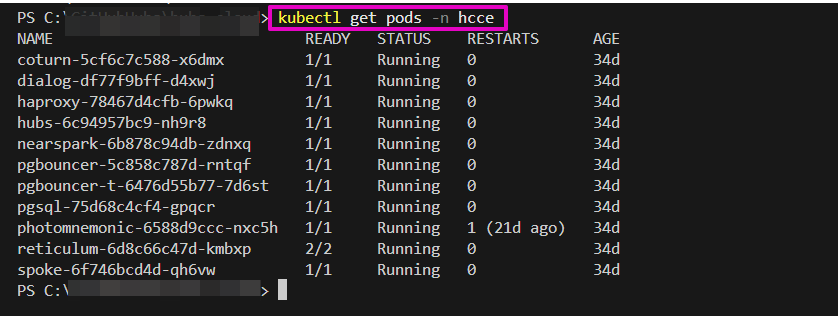
- Find the pod names that start with “dialog”, “hubs”, “nearspark”, “photomnemonic”, and “spoke” and copy and paste them into a temporary text file.
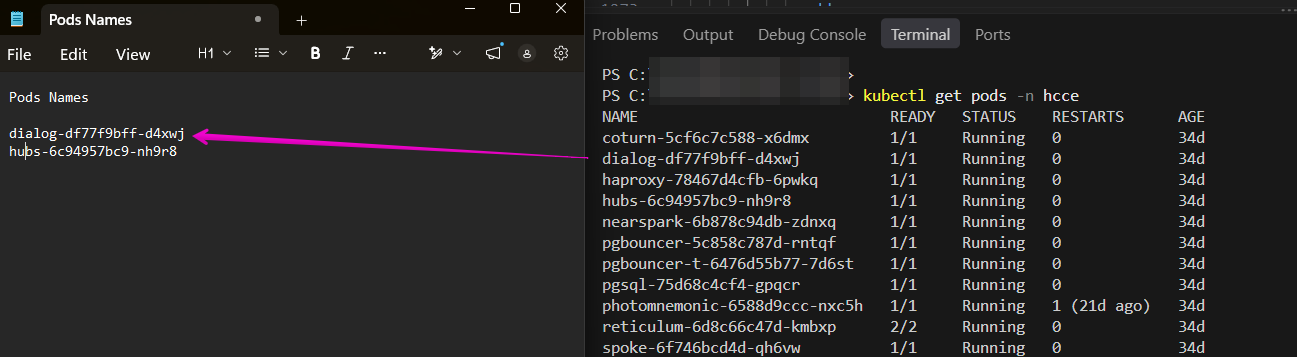
- In VS Code, copy and paste or type this into the terminal and hit enter on your keyboard:
- Check the Image IDs.
- For dialog:
- Copy and paste or type this into the terminal, modify it with your pod name, and hit enter on your keyboard:
kubectl describe pod <your-dialog-pod-name> -n hcce
Make sure to replace “your-dialog-pod-name” with your saved dialog pod name (ie. dialog-df7788909bff-d4xwj. Do not include the angle brackets (< or >). Make sure to include the “-n hcce” at the end. - Find Containers, dialog, Image ID. It should match this:
docker.io/hubsfoundation/dialog@sha256:ae24bef57ed80a6ee723fd8c447eb28c149e2c9f27808efd1e7e302fc9539e0a
- Copy and paste or type this into the terminal, modify it with your pod name, and hit enter on your keyboard:
- For hubs:
- Copy and paste or type this into the terminal, modify it with your pod name, and hit enter on your keyboard:
kubectl describe pod <your-hubs-pod-name> -n hcce
Make sure to replace “your-hubs-pod-name” with your saved hubs pod name (ie. hubs-788909fjeklbff-d4xwj. Do not include the angle brackets (< or >). Make sure to include the “-n hcce” at the end. - Find Containers, hubs, Image ID. It should match this:
docker.io/hubsfoundation/hubs@sha256:878fd63c687a5652266577f19c65de309f61dc9beb0ef0f71fbac73655c39cd9
- Copy and paste or type this into the terminal, modify it with your pod name, and hit enter on your keyboard:
- For nearspark:
- Copy and paste or type this into the terminal, modify it with your pod name, and hit enter on your keyboard:
kubectl describe pod <your-nearspark-pod-name> -n hcce
Make sure to replace “your-nearspark-pod-name” with your saved nearspark pod name (ie. nearspark-788909fjeklbff-d4xwj. Do not include the angle brackets (< or >). Make sure to include the “-n hcce” at the end. - Find Containers, nearspark, Image ID. It should match this:
docker.io/hubsfoundation/nearspark@sha256:c2af7c30a78119a52872279cd0bdbb0fd2d98a6456e2d9fe8272afd6b8f846c3
- Copy and paste or type this into the terminal, modify it with your pod name, and hit enter on your keyboard:
- For photomnemonic:
- Copy and paste or type this into the terminal, modify it with your pod name, and hit enter on your keyboard:
kubectl describe pod <your-photomnemonic-pod-name> -n hcce
Make sure to replace “your-photomnemonic-pod-name” with your saved photomnemonic pod name (ie. photomnemonic-788909fjeklbff-d4xwj. Do not include the angle brackets (< or >). Make sure to include the “-n hcce” at the end. - Find Containers, photomnemonic, Image ID. It should match this:
docker.io/hubsfoundation/photomnemonic@sha256:ea598857aa1284acb96b0a6881f79cfb8cee62542a3c8e246beda94859d4715d
- Copy and paste or type this into the terminal, modify it with your pod name, and hit enter on your keyboard:
- For spoke:
- Copy and paste or type this into the terminal, modify it with your pod name, and hit enter on your keyboard:
kubectl describe pod <your-spoke-pod-name> -n hcce
Make sure to replace “your spoke-pod-name” with your saved spoke pod name (ie. spoke-ffejmseklbff-d4jgwj. Do not include the angle brackets (< or >). Make sure to include the “-n hcce” at the end. - Find Containers, spoke, Image ID. It should match this:
docker.io/hubsfoundation/spoke@sha256:4c071b3184263a1fd53be0964bbd9fd1aa56fc21eba468c73f58e64d6b1f0ff2
- Copy and paste or type this into the terminal, modify it with your pod name, and hit enter on your keyboard:
- For dialog:
- If your Image ID characters match the characters we indicate, you have updated successfully. You can close VS Code.
- If your Image ID characters do not match the characters we indicate, come over to Discord and ask for help.
- Get your pod names.
For new Hubs instances:
Your version of Hubs will have these updates already applied.
Hubs Community Edition Deployment Scripts release notes: https://github.com/Hubs-Foundation/hubs-cloud/releases/tag/2.1.2
Other tools and repositories
A couple of our other tools and repositories are also affected by the Node/Brotli security vulnerability. They are listed below, along with their status.
- Hubs Backup Tool
- Update pending.
- Hubs Discord Bot
- Needs to be run with a version of Node that has fixed the Node/Brotli security vulnerability, but otherwise is unaffected. An update is pending to update the readme with a new recommended Node version.
Note: this list will be updated as things change.